1. git client 설치
Git
www.git-scm.com
ggGUI Client를 다운로드 후 설치한다.
2. Git CMD 실행

git client를 설치하면 Git CMD를 실행할 수 있다. Git CMD를 실행하여 작업할 폴더로 이동한다.
3. user config

사용할 user를 지정한다.
$ git config --global user.name "Mona Lisa"
참고 1)
user.name을 지정하지 않았다면 Profile에서 Name을 지정해야 한다.
또는 가입 시 인증한 이메일로도 가능하다.
$ git config user.email "email@example.com"
Setting your username in Git - GitHub Docs
Setting your username in Git Git uses a username to associate commits with an identity. The Git username is not the same as your GitHub username. Mac Windows Linux All You can change the name that is associated with your Git commits using the git config co
docs.github.com
참고 2)
여러 개의 github 계정을 사용중일 때, 이전에 config된 user를 지우는 방법
[제어판] - [사용자 계정] - [자격 증명 관리자] - Windows 자격 증명
github에 대한 일반 자격 증명을 제거하면 된다.

4. Repository 내 PC와 동기화
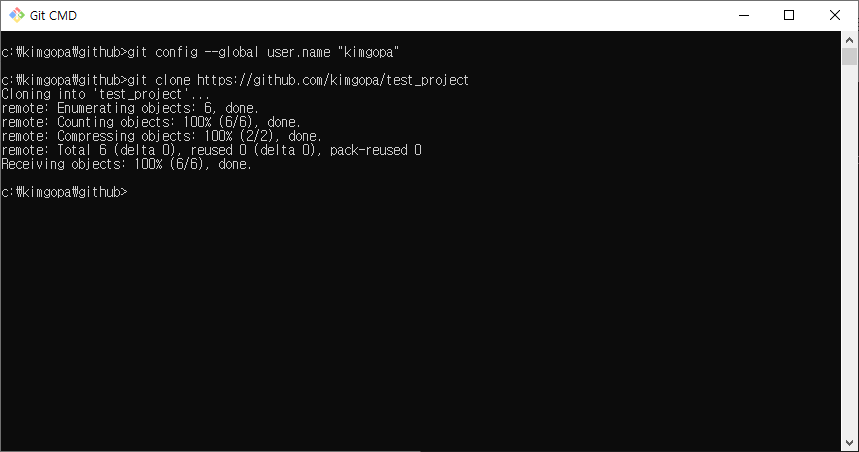
$ git clone github주소
현재 폴더로 해당 주소의 Repository가 복제된다.

내 PC에 복제된 Repository에 파일을 추가했다.
$ git add 파일명
$ git commit -m "Commit 메시지"
$ git push
그 파일이 github의 Repository로 업로드된다. 명령어에 입력한 Commit 메시지는 github의 Commit에 추가된다.
push 후에는 로그인 창이 뜨는데, 그때 github 로그인을 하면 된다.
참고)
$ git commit
github의 Repository에 동기화할 파일을 add 후 commit을 한다.
그러면 vi 에디터가 실행되는데, :q! 명령을 입력하면 vi 에디터가 종료된다.
vi 에디터 사용법을 알면, vi 에디터에서 commit을 완료해도 된다.

$ git pull
github에서 수정된 내용을 내 PC로 받아온다.

$ git commit 파일명 -m "Commit 메시지"
$ git push
내 PC에서 수정된 내용을 github 저장소로 업로드한다.

$ git rm 파일명
$ git commit -m "Commit 메시지"
$ git push
해당 파일을 PC와 github 저장소에서 삭제한다.
'Dev Tools' 카테고리의 다른 글
| [GitHub] github 사용 방법 - Visual Studio (0) | 2020.12.18 |
|---|---|
| [GitHub] github 시작하기 - web (1) | 2020.12.16 |